Step 6 of 8 · Tutorial: Process a Month of Receipts
Save to the Existing Target Tables
Save reviewed expenses into the category tables prepared for the claim period.
Finish receipt review and Money In Review before saving. Once saved, the batch is kept read-only under Saved to tables, so these reviews cannot be finished there afterwards.
When the batch looks correct, save it:
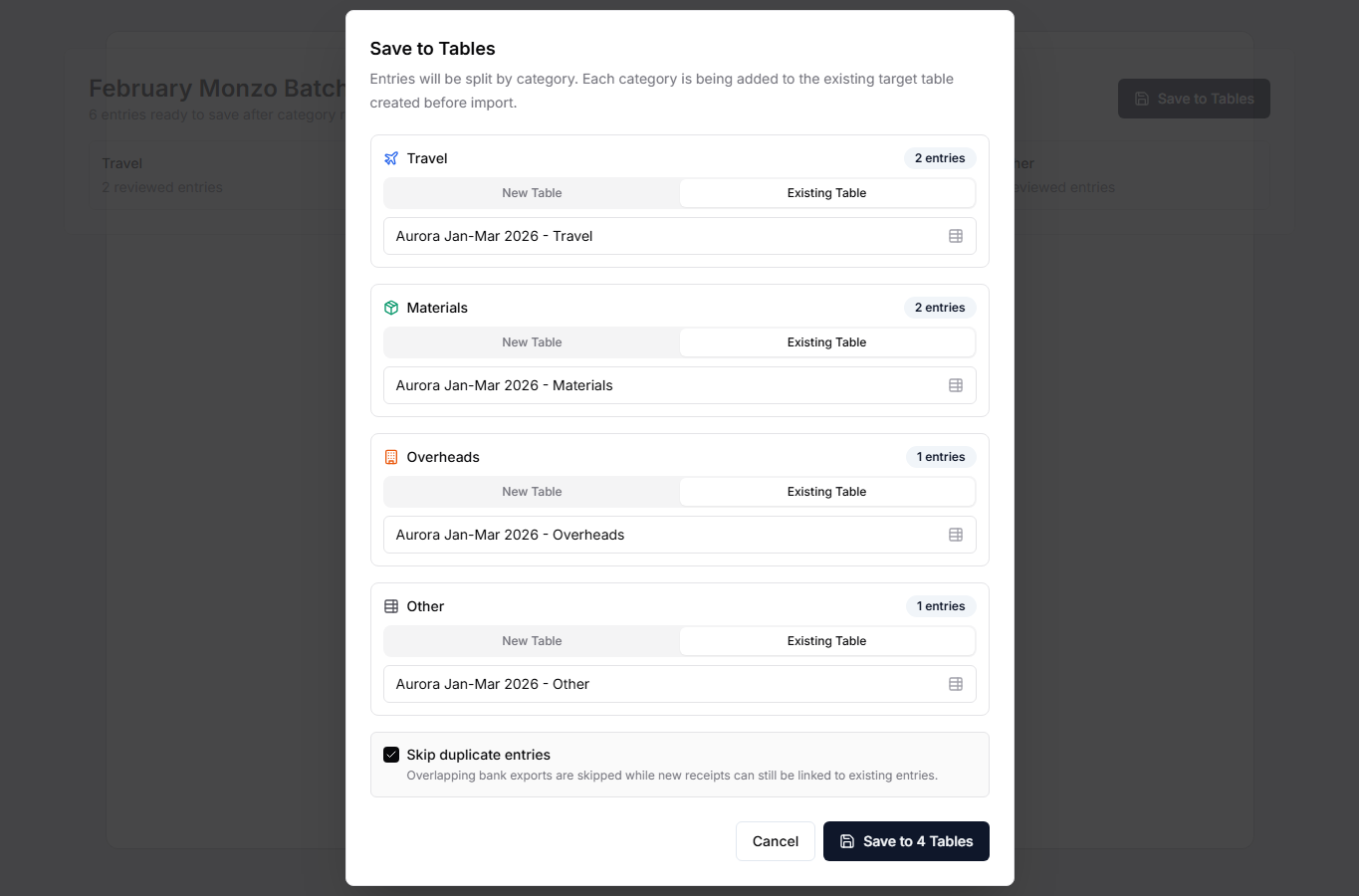
- Select Save to Tables.
- For each active category, choose Existing Table.
- Select the matching Table you created earlier, such as Aurora Jan-Mar 2026 - Travel.
- Leave Skip transactions already in your tables on. It is the safer default for overlapping bank exports: transactions already saved in any Table are skipped, and a skipped transaction's receipt is added to the existing entry if that entry has none. Rows marked as already in your tables are skipped only while this stays ticked.
- Check May already be entered in the dialog. It lists transactions that look like entries someone already added by hand — for example an invoice entered on the 1st and paid on the 25th. Tick a row to skip it; its receipt is added to that entry if the entry has none. Saving waits until this check has finished; if the check fails, the dialog says so and saving still works.
- Confirm the save.
You can still create new Tables from this dialog, but the cleanest workflow is to create the target Tables first and save into those existing Tables.
Repeat this import, review, and save process for every bank statement that belongs to the same claim period.